
Capture Customers' Precise Location
Learn how addressly works to capture precise customer location for efficient deliveries.
Updated
Addressly offers a simple way to capture precise customer locations. Follow these steps to enable the Precise Location widget on your storefront:
Step 1: Activate Precise Location Script

- Go to the theme editor and enable the Precise Location app embed.
- Enter your Google Map API key for the map to load on your storefront.
Step 2: Add Precise Location Widget

- Access the Sections area in the theme editor.
- Choose the template where you want to add the widget (e.g., Header, Cart, Product).
- Add the Precise Location Widget to your preferred location, such as the Header for universal access.
Step 3: Configure the settings
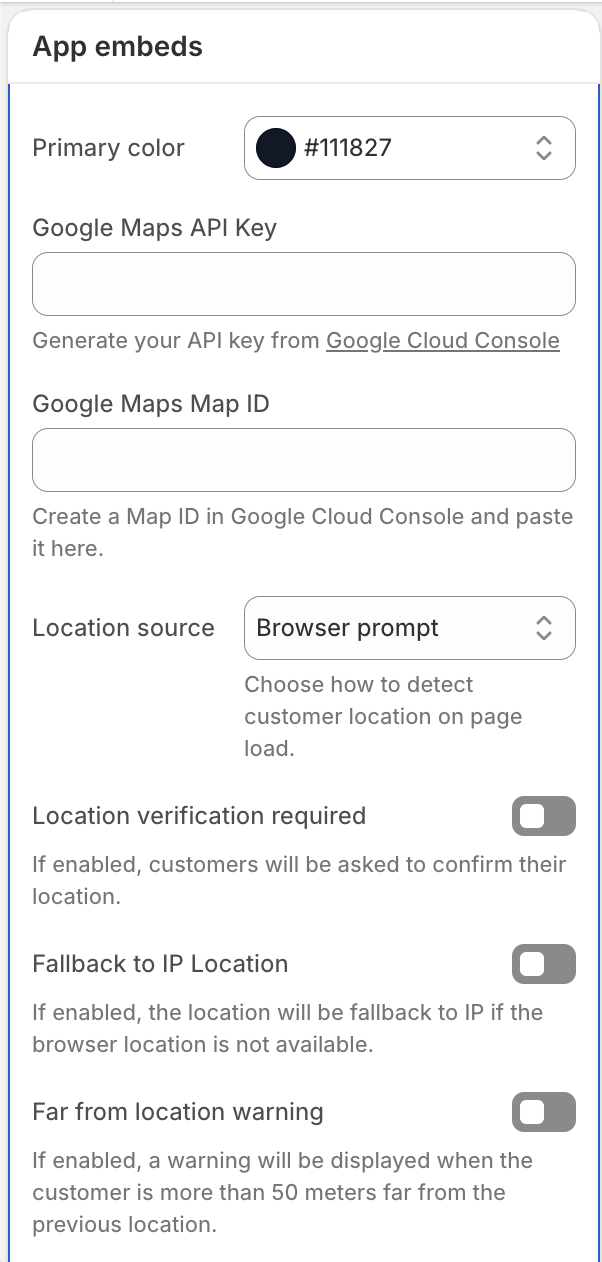
- Choose how the customer location is collected. Automatically using browser location permission, or manually when user clicks on the widget.
- Optionally choose if the location detection should user IP based location details.
- Decide if the verified location is required or optional. If required, user will be asked to confirm their current location in the map.
- Optionally, enable a far from location warning if the user is more than 50 meters away from their last given location.
- Optionally, activate the Store widget to show store timings and manage related settings.
- Additionally, you can setup checkout behavior based on location and delivery zone.
What your customers see
- Opening the location flow Shoppers tap your delivery or location entry and get a modal where they can search for an address, move a pin on the map, or use my location if their browser allows it. Logged-in customers may also pick from saved addresses.
- Confirming location (if you require it) With verification on, they must confirm the pin or address before they continue, so checkout matches a place they explicitly chose.
- When precise GPS isn’t available You can turn on a fallback so shoppers still get a reasonable estimate when the device can’t pin them exactly.
- If they’ve moved since last time You can show a reminder when they’re far from their last confirmed spot so they update or double-check delivery location.
- Delivery zones If you use zones, shoppers outside the area may see your message and/or be stopped from checking out, depending on what you picked.
- Nearest store and hours (optional) You can show store info in the flow and optionally block checkout when the store is closed.
Addressly app (locations and plan)
Shopify → Apps → Addressly
- Store locations and related setup power the store parts of the modal when you enable them.
- Precise Location needs to be on your plan for the live store; theme preview may show a note if it isn’t.
Super Local Delivery (zones)
In the Super Local Delivery app, create and update delivery zones. The modal uses that to apply the in-zone and out-of-zone behavior you set in the embed (and on the block, if it appears there).