
Facebook App Setup Guide
To create a Facebook App and connect iOS and Android applications for tracking installs, events, and performance from Facebook Ads.
Updated
Step 1: Open Facebook for Developers
-
Log in using your Facebook account.
-
Click “Create App”.
-
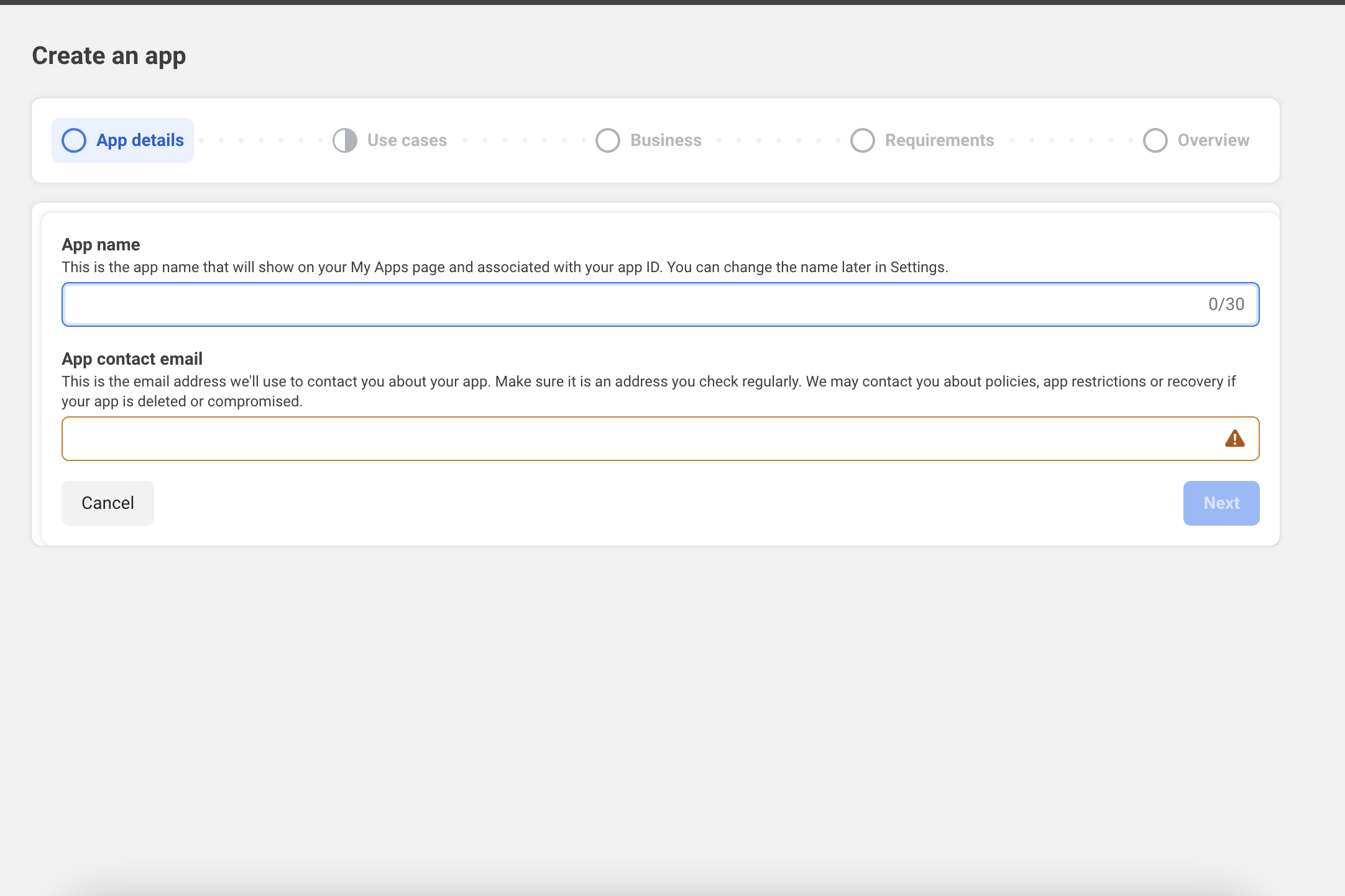
Follow the prompts to complete the basic setup.
- App Name → enter your app name
- App Contact Email → add a valid email address
- Click Create App
Step 2: Create a New App
-
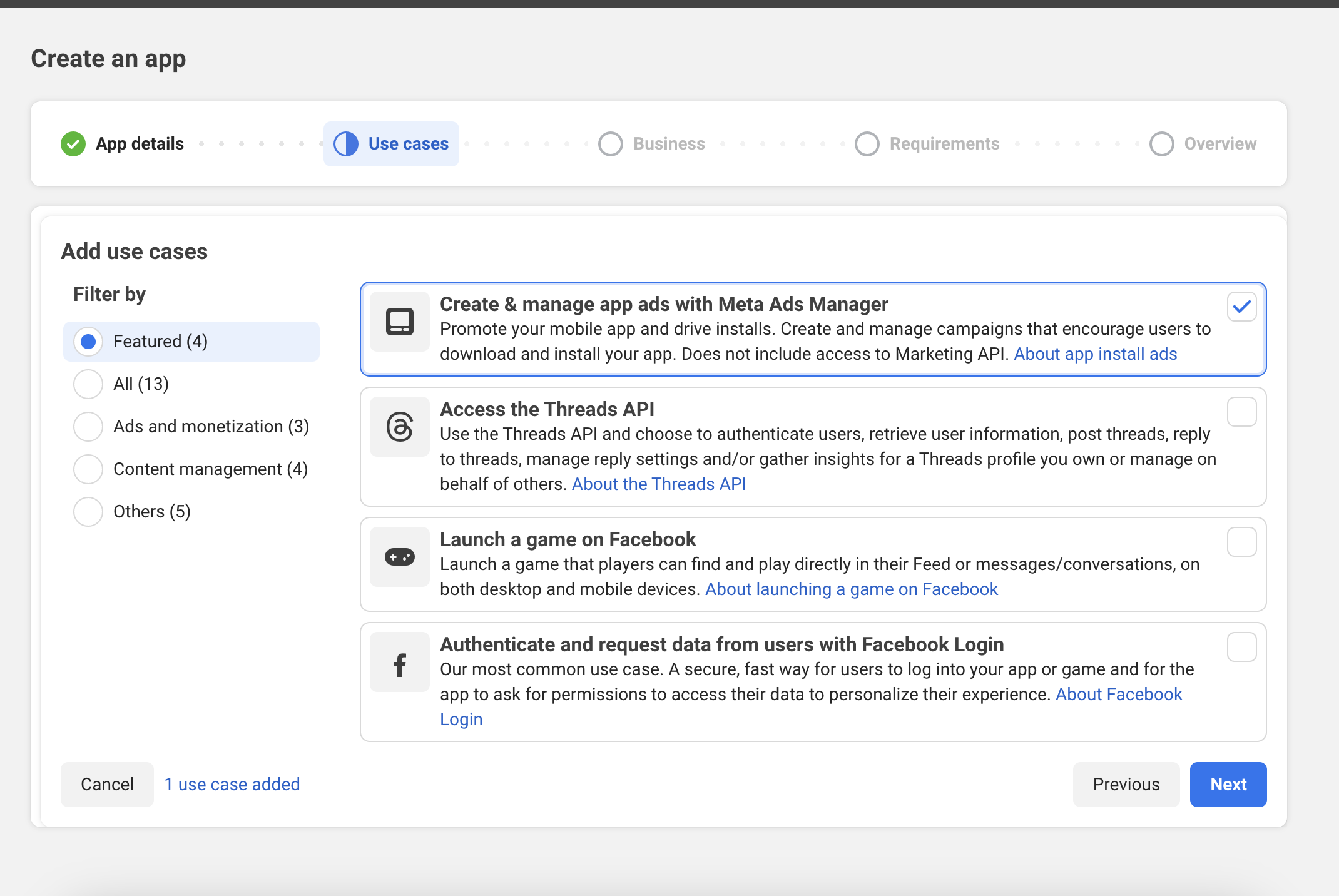
When asked for “What do you want your app to do?”, choose “Other”.
-
Select “None” or “Business” as the app type, depending on your use case.
- Choose “Business” if this app will be used for advertising or tracking installs.
-
Click Next.
-
Fill out the following fields:
- App Name: Enter your app’s name (e.g., SuperMobileApp).
- App Contact Email: Add a valid email address.
- Business Account: (Optional) Link to your business account if available.
-
Click “Create App” and complete the security verification.
Step 3: Open App Dashboard
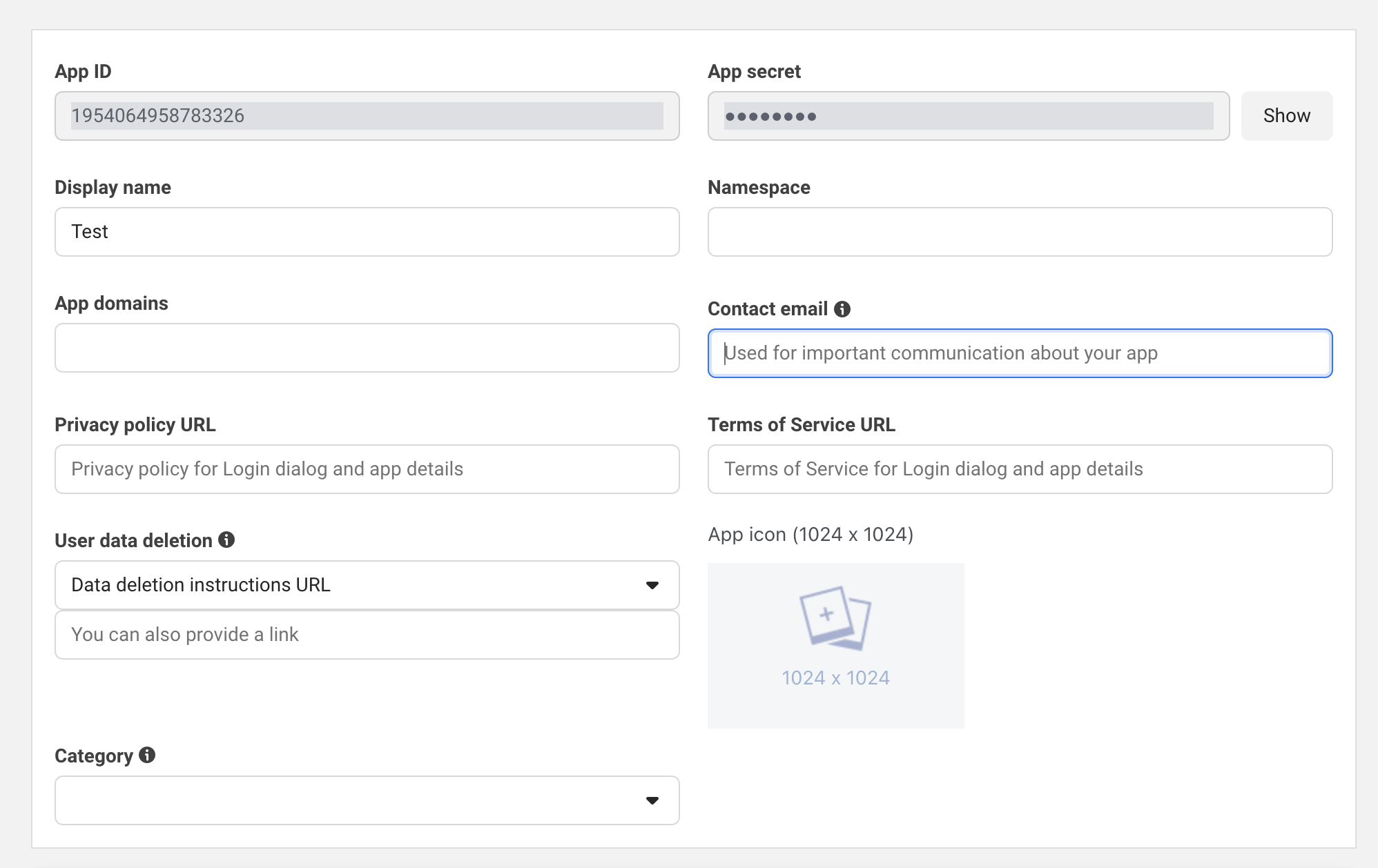
- Once the app is created, you’ll be redirected to the app dashboard.
- In the left-hand menu, go to App Settings → Basic.
- Enter all required basic information.
Step 4: Add Platforms
- Scroll down and click “Add Platform.”
- Select both iOS and Android (add one by one).
Step 5: iOS Configuration
-
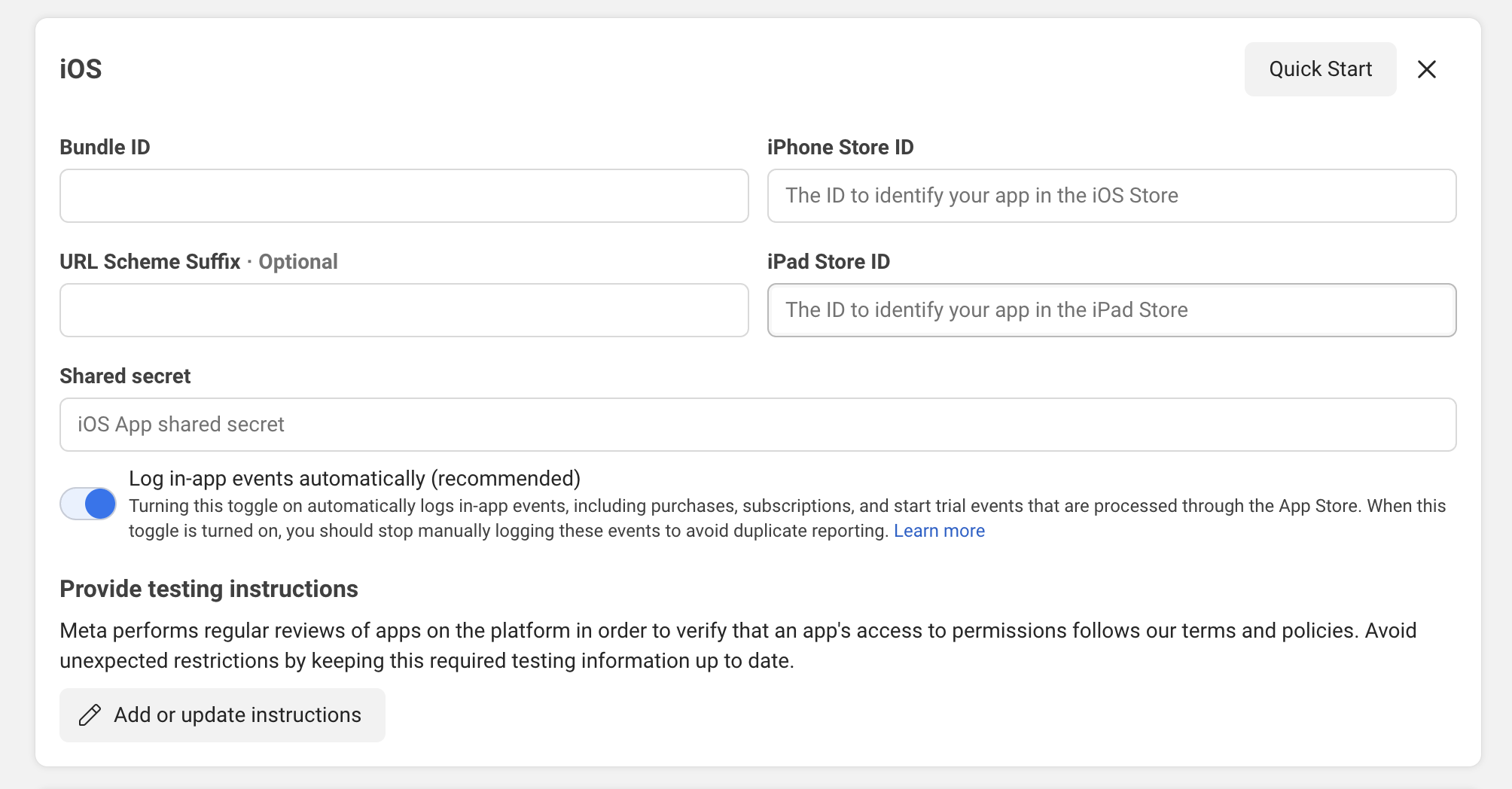
Under iOS Settings (refer to screenshot):
-
Bundle ID: Available in the Apploy Dashboard → Build Settings.
-
iPhone Store ID / iPad Store ID: You can find it in your app’s App Store URL — for example:
https://apps.apple.com/app/id1234567890→ Here, 1234567890 is the App Store ID.
-
-
Click Save Changes once done.
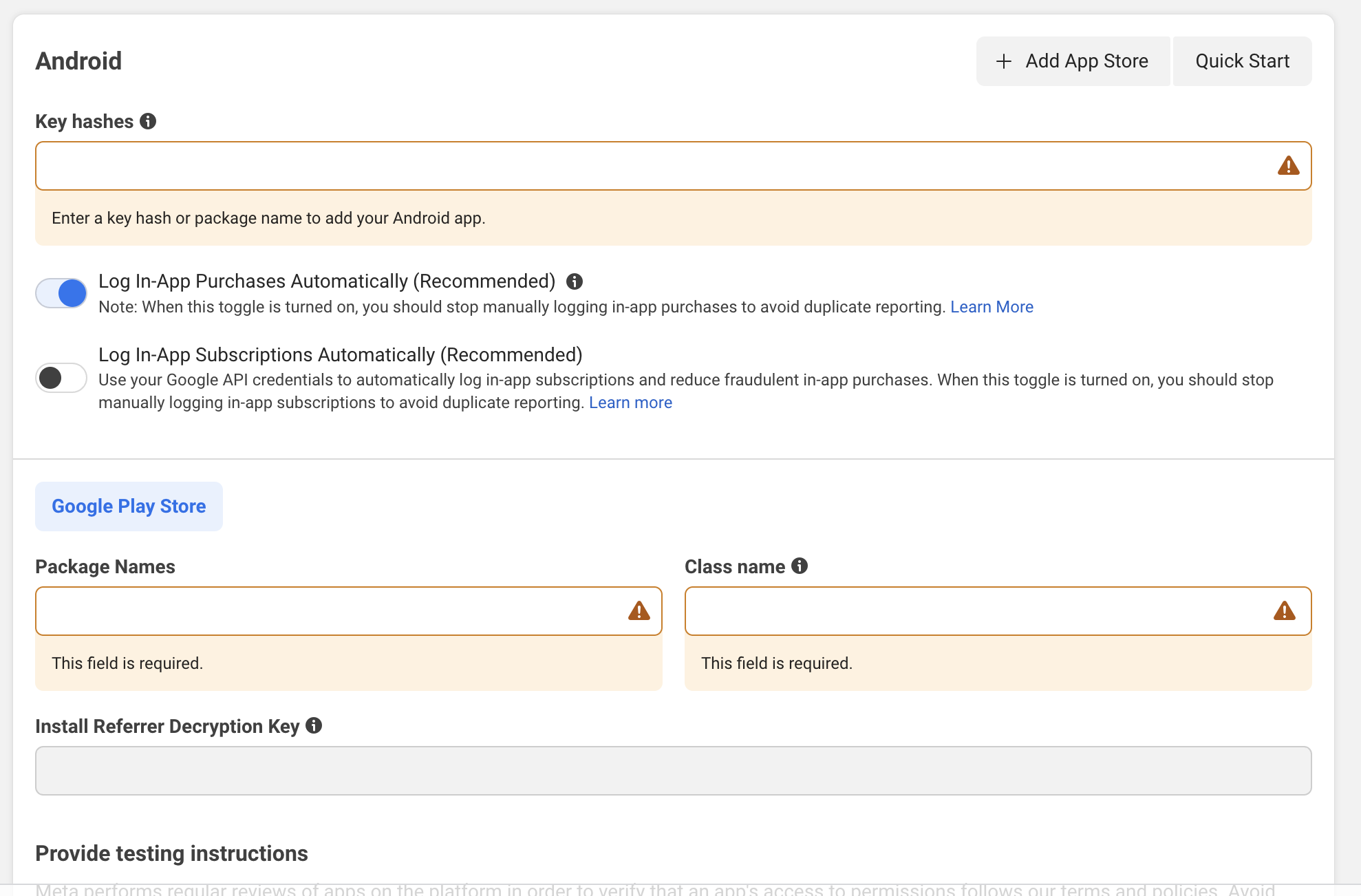
Step 6: Android Configuration
-
Under Android Settings (see screenshot):
- Package Name: Get this from the Apploy dashboard → Build Settings.
- Class Name: Enter
MainActivity. - Key Hash: Apploy will provide you the key hash.
- Leave other fields as default.
-
Click Save Changes.
Step 7: Retrieve Required Credentials
Once both iOS and Android platforms are added:
-
Go to App Settings → Basic
-
Copy:
- App ID
- Display Name
-
-
Go to App Settings → Advanced → Security
-
Copy:
- Client Token
-
Step 8: Enable Facebook Integration in Apploy
-
Go to the Apploy Dashboard → Build Settings.
-
Locate the Facebook Integration section.
-
Enable the Facebook integration option.
-
Enter the following details from your Facebook app:
- App ID
- Display Name
- Client Token
-
Click Save to complete the setup.