
Firebase Setup Guide for Merchants - Android
A step-by-step guide on creating a Firebase account, downloading google-services.json, and obtaining Firebase JSON for push notifications on Android.
Updated
This document provides a step-by-step guide on how to create a Firebase account, generate and download google-services.json for Android, and obtain the Firebase JSON from Manage Service Accounts for enabling push notifications.
Creating a Firebase Account
- Sign Up for Firebase.
- Go to Firebase Console.
- Sign in with your Google account.
- Click on 'Create a Project'.
- Enter a Project Name and click Continue.
- Configure Google Analytics (optional) and click Create Project.
- Once the project is created, click Continue.
Generating and Downloading google-services.json for Android
- In the Firebase Console, select your project.
- Click on the Gear Icon → Project Settings.
- Navigate to the General tab and click Add App under 'Your Apps'.
- Select Android and enter your app’s Package Name (this should match your app’s package name in your app builder).
- Click Register App.
- Once registered, click Download google-services.json.

Getting Firebase JSON for Push Notifications
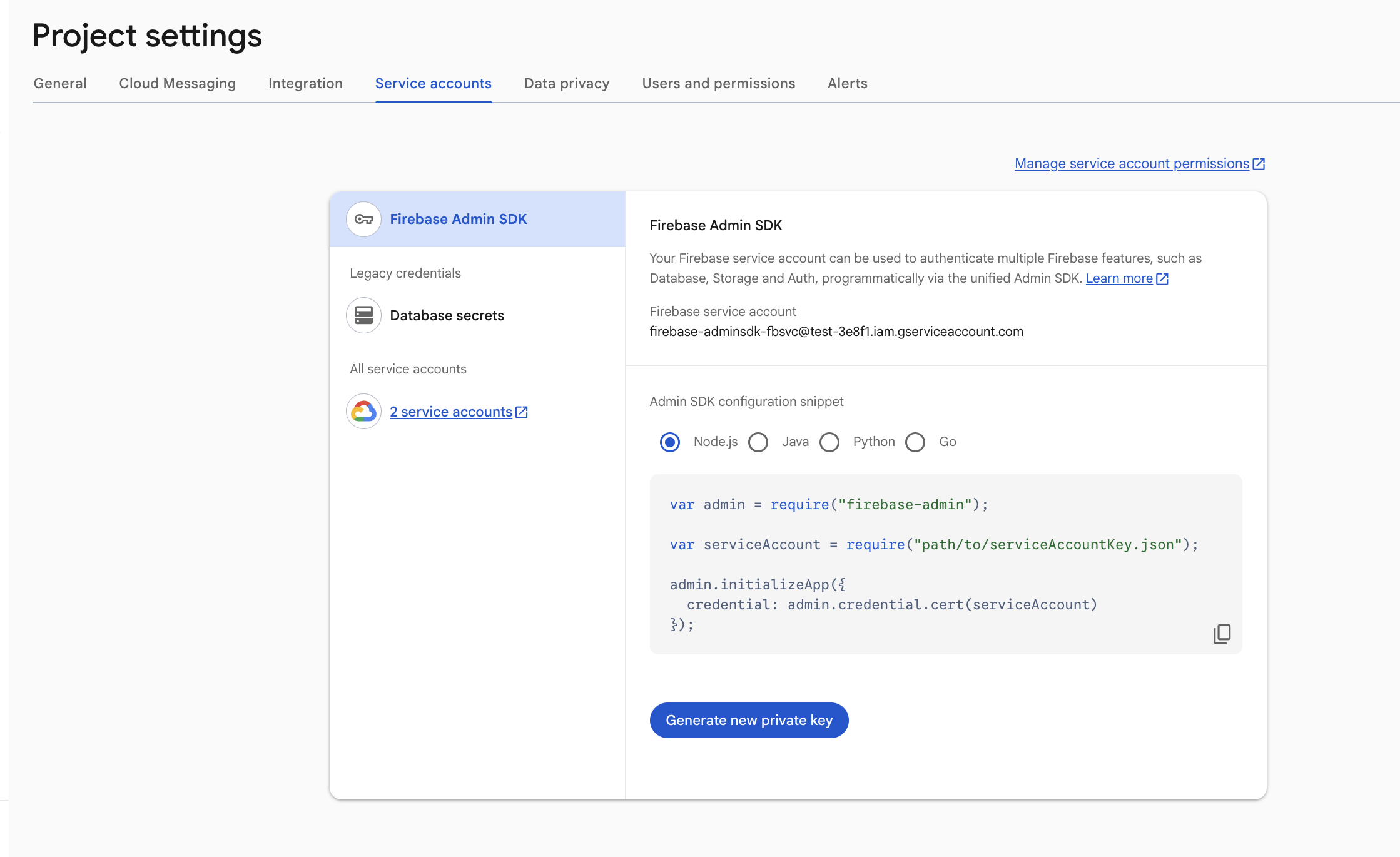
- In the Firebase Console, go to Project Settings.
- Navigate to the Service Accounts tab.
- Click Manage Service Accounts.
- Click Generate New Private Key.
- A JSON file will be downloaded to your system.
- Save this file securely; it is required for push notifications.
Service Account Setup for Android Build Automation
A Firebase Service Account is also required for Android build automation. It allows our build automation system to securely communicate with Google services and access the required Google Play Console functionality.
Follow the steps below to configure the required permissions.
1. Assign the Required Role to the Service Account
- Open the Google Cloud Console.
- Select the Firebase project you created.
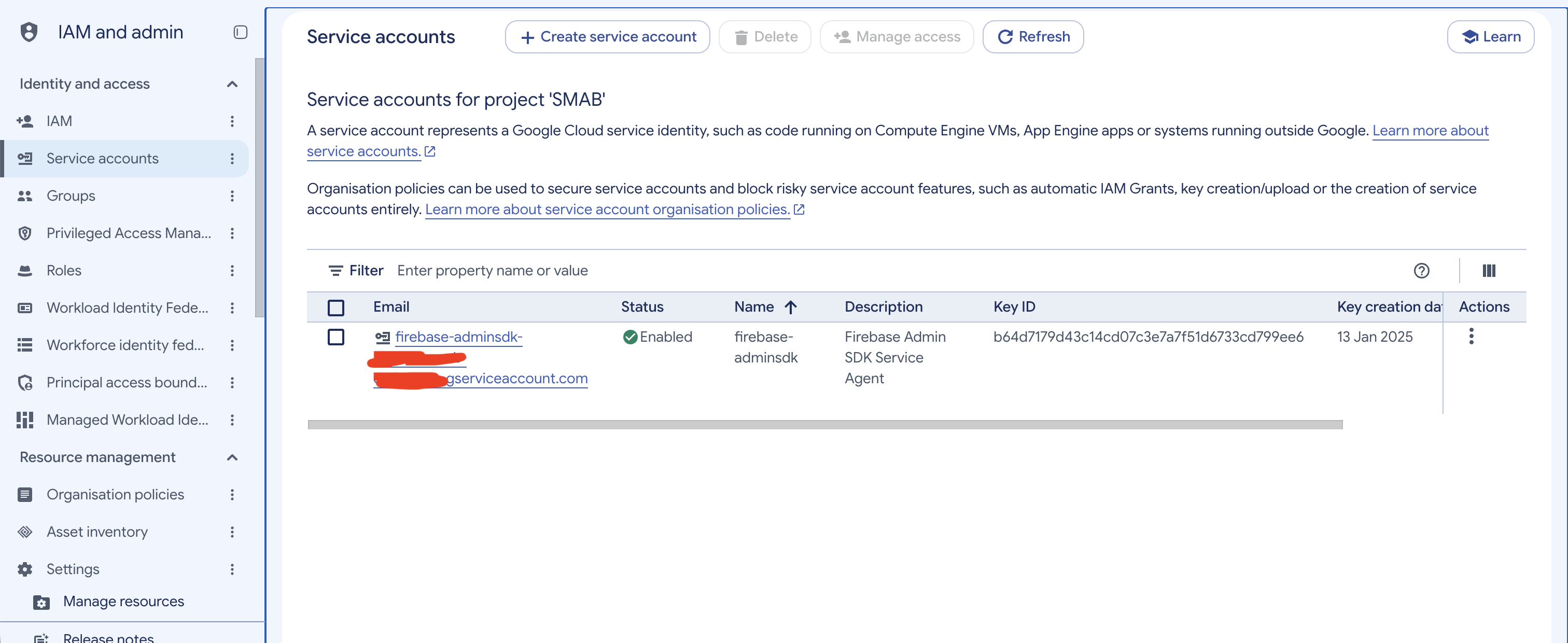
- Navigate to IAM & Admin → Service Accounts.
- Click on Grant Access.
- Enter your Firebase Service Account email address in the New Principals field.
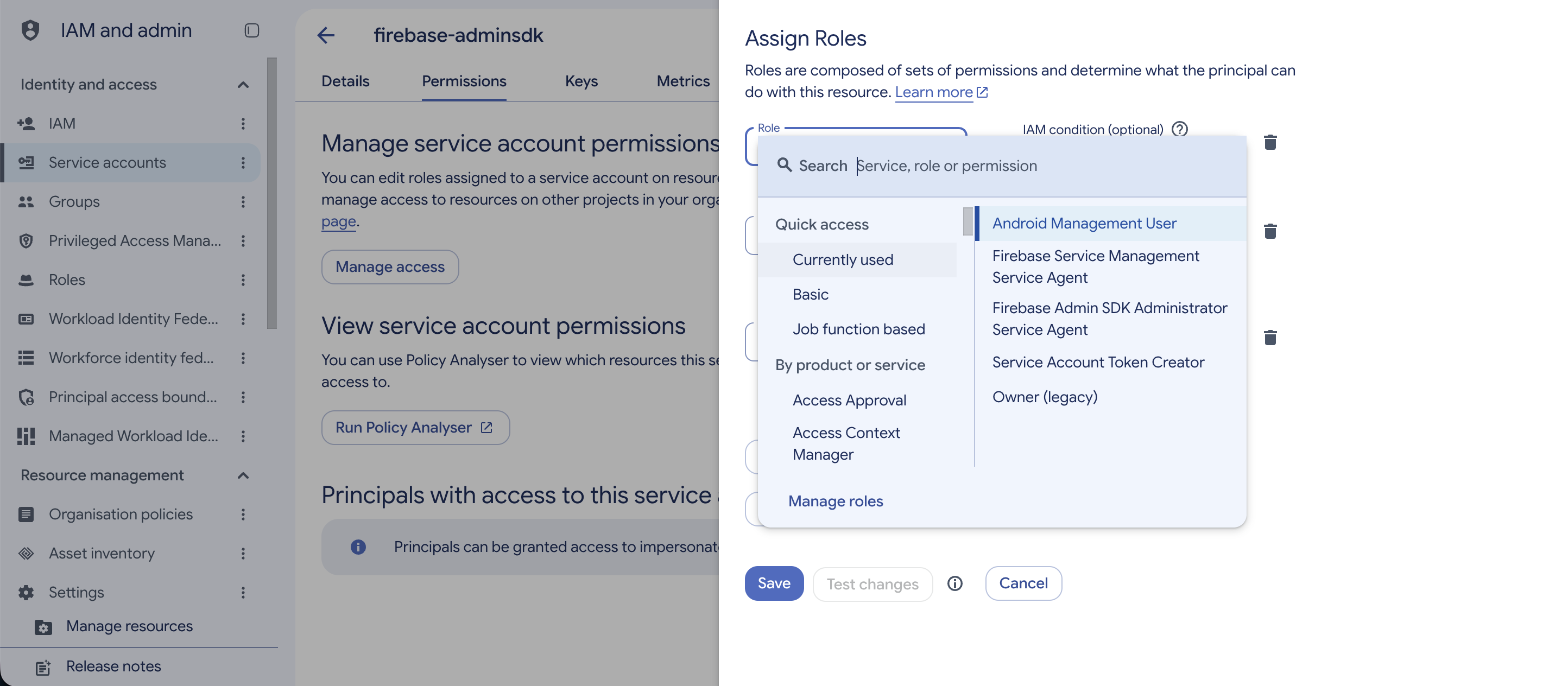
- Open the Select a Role dropdown.
- Search for and select Android Management User if your integration requires the Android Management API.
- Click Save.
2. Enable Google Play Android Developer API
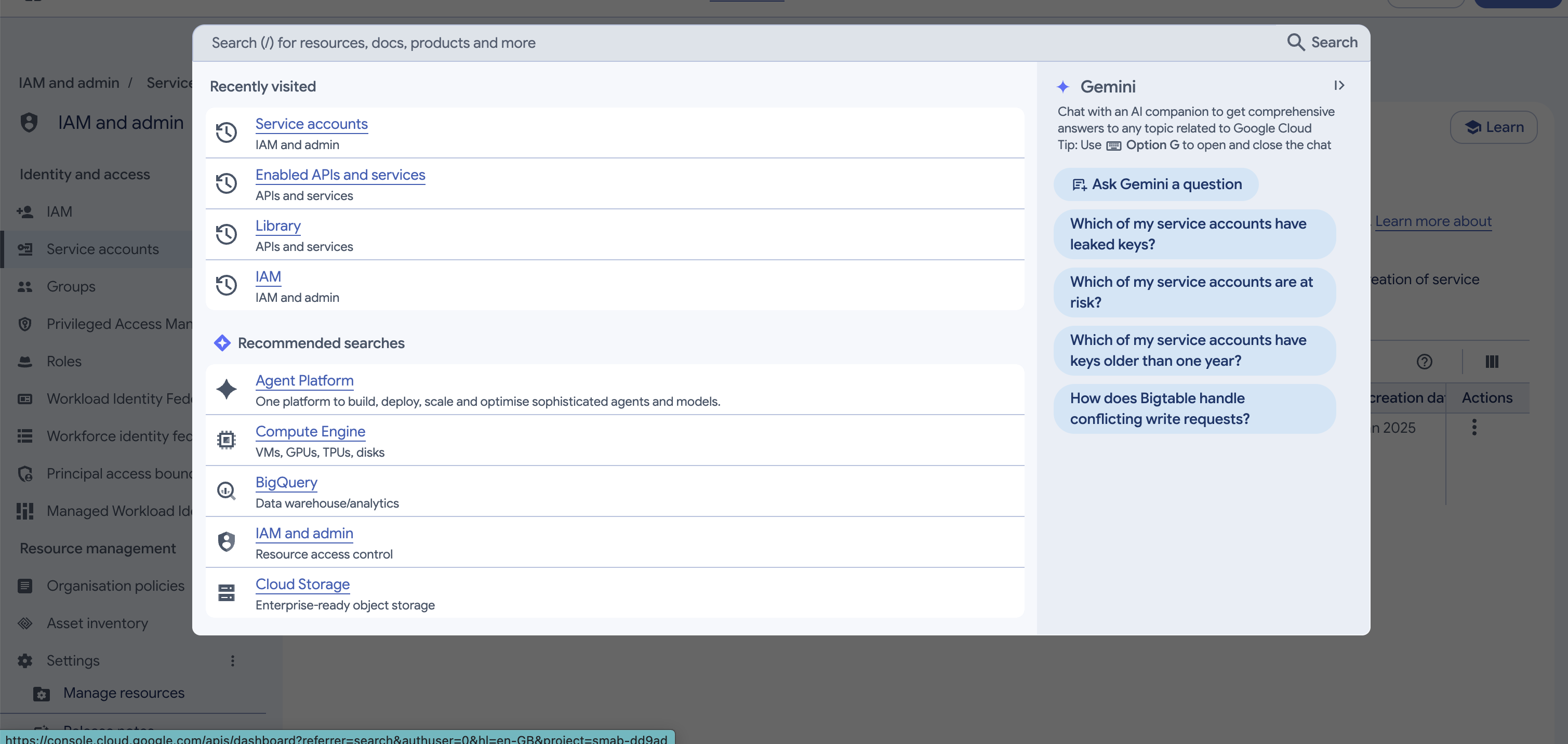
- In the Google Cloud Console, navigate to APIs & Services → Library.
- In the search bar, search for Google Play Android Developer API.
- Select the API from the search results.
- Click the Enable button.
- Wait until the API is successfully enabled.
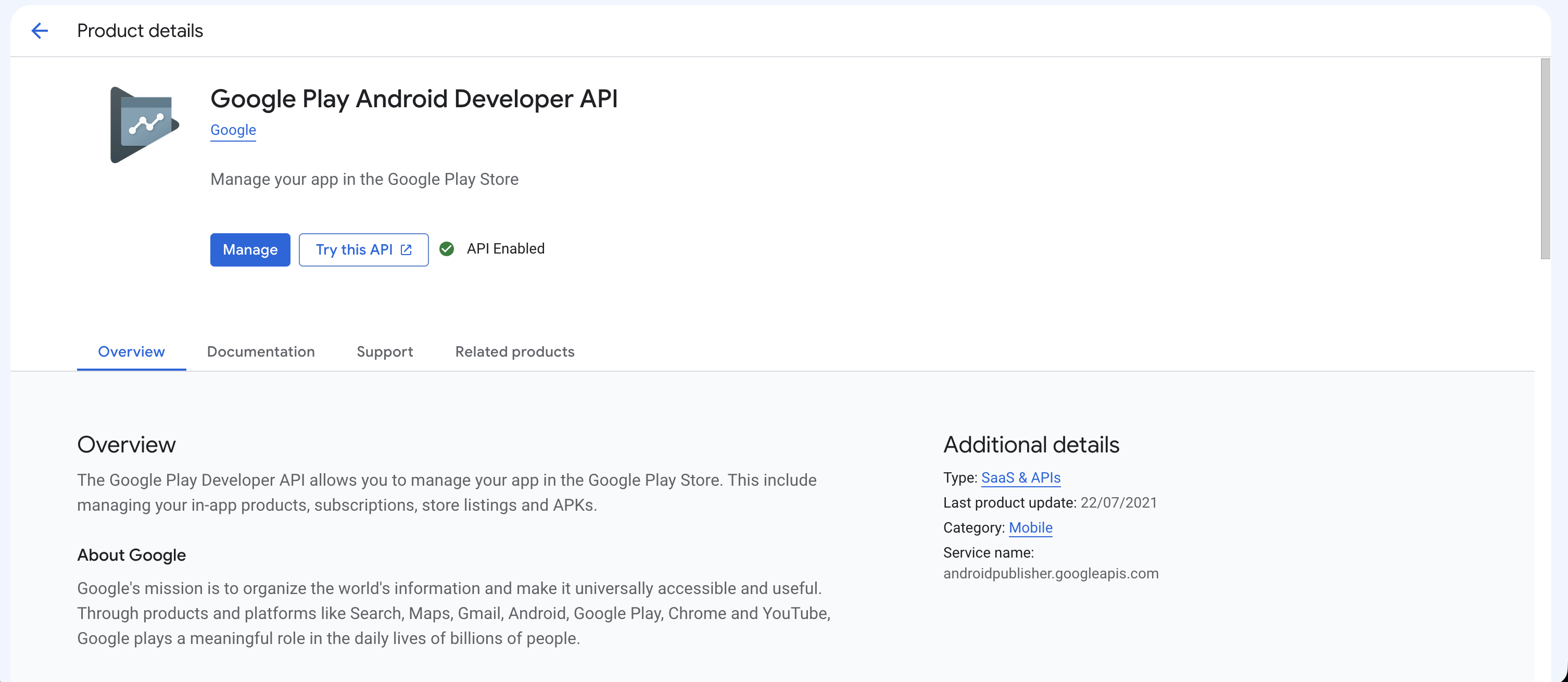
3. Copy the Firebase Service Account Email
- Navigate to IAM & Admin → Service Accounts in the Google Cloud Console.
- Make sure you have selected the correct Firebase project.
- Locate the service account you created earlier.
- Copy its email address from the Email column.
This email address will be required when adding the service account to your Google Play Console.
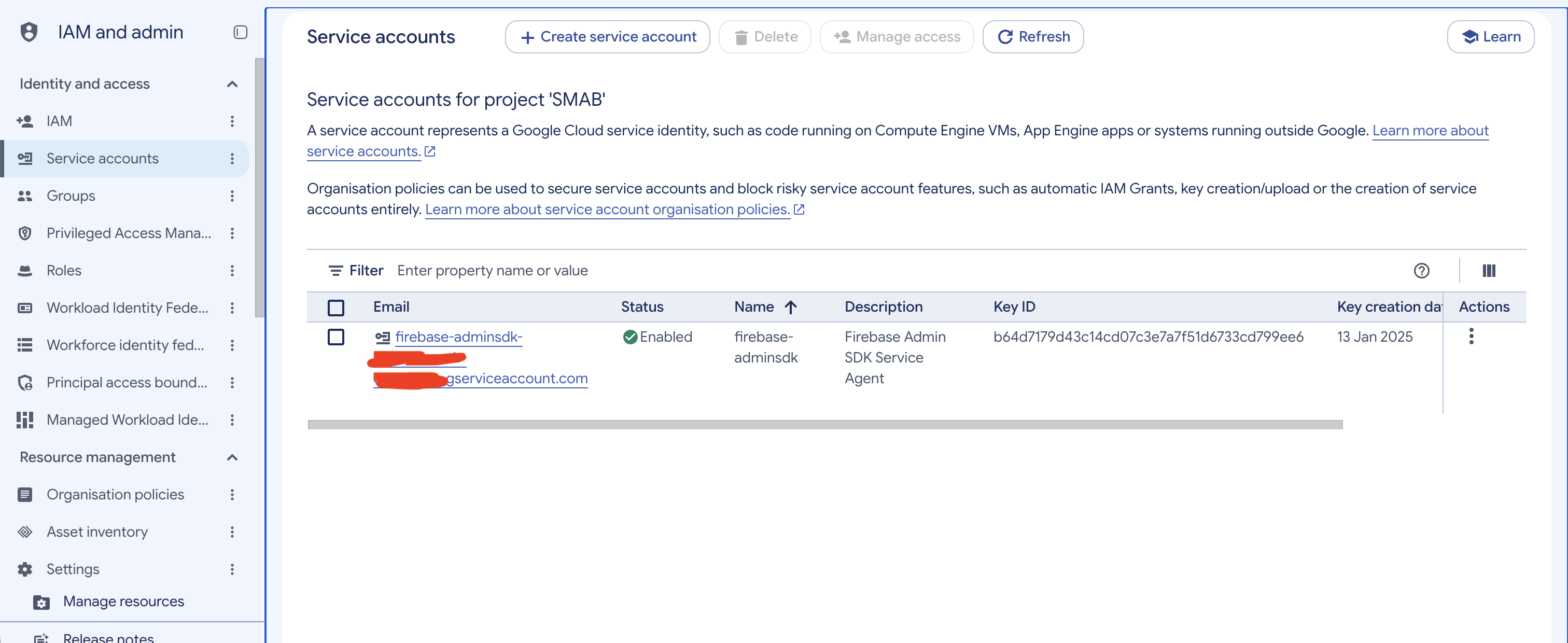
4. Add the Firebase Service Account to Google Play Console
Now you need to grant the Firebase Service Account access to your Google Play Console.
- Open Google Play Console.
- Select your developer account.
- Navigate to Users and permissions.
- Click on Invite new users or Add user.
- Paste the Firebase Service Account email address you copied in the previous step into the Email address field.
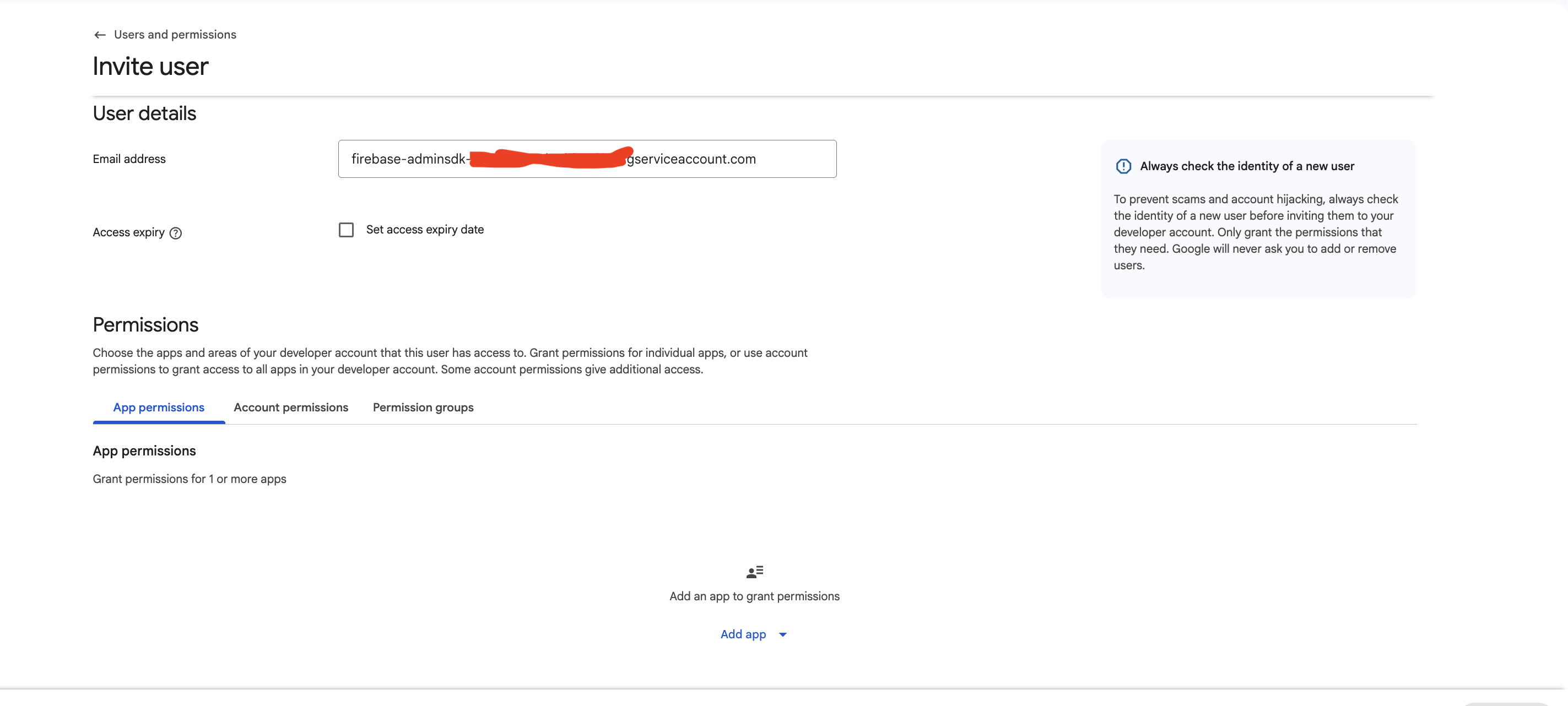
5. Select Your Application
- Scroll down to the App permissions section.
- Select your application from the list of available apps.
- Make sure you select the correct application for which you are configuring Android build automation.
6. Grant Release and Store Presence Permissions
After selecting your application:
- Scroll down to the Permissions section.
- Locate the Release section.
- Select the Select all option to grant all permissions under Release.
- Locate the Store presence section.
- Select the Select all option to grant all permissions under Store presence.
- Review the selected permissions to ensure both sections have all their permissions enabled.
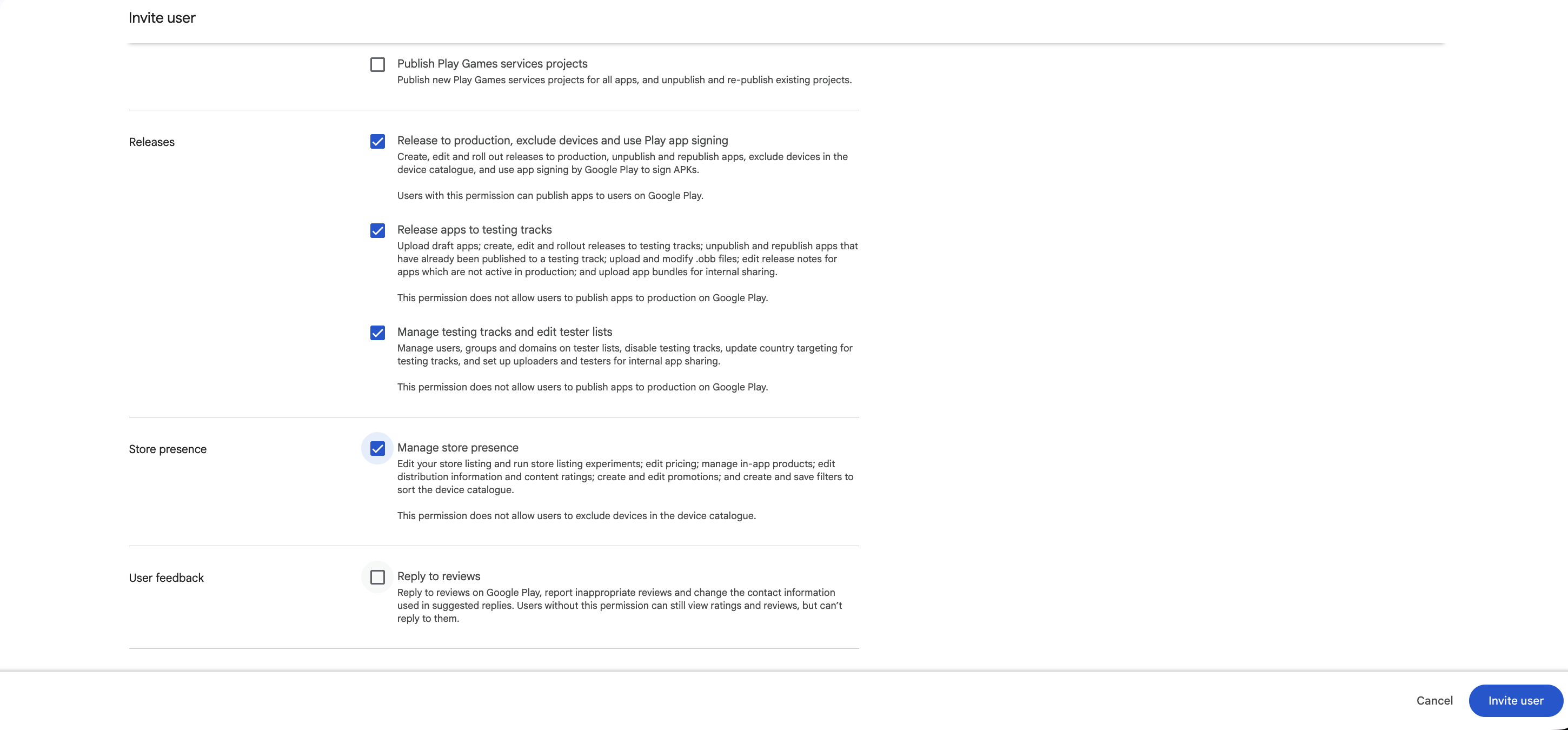
7. Send the Invitation
- Once you have selected the application and configured the required permissions, review the details.
- Click the Invite user button.
- The Firebase Service Account will be added to your Google Play Console with the selected permissions.
Your Firebase Service Account is now configured with the required Google Play Console access for Android build automation.