
Rental Return Pickup - Step-by-Step Guide
Learn how to enable rental return pickups, configure settings, prepare Shopify orders, and create return routes.
Updated
Use this guide end to end: enable the feature → set tags/attributes → mark orders ready → create a return pickup route → optionally automate with Shopify Flow.
What this feature does
• Outbound — normal delivery (Delivered).
• Return — fulfilled order tagged for return → Return Orders tab → driver completes return pickup statuses.
• SLD handles logistics. It does not replace your rental booking or pricing app.
Plan requirement: If Settings → Rentals is locked, upgrade first.
Part 1 — Enable rental pickup
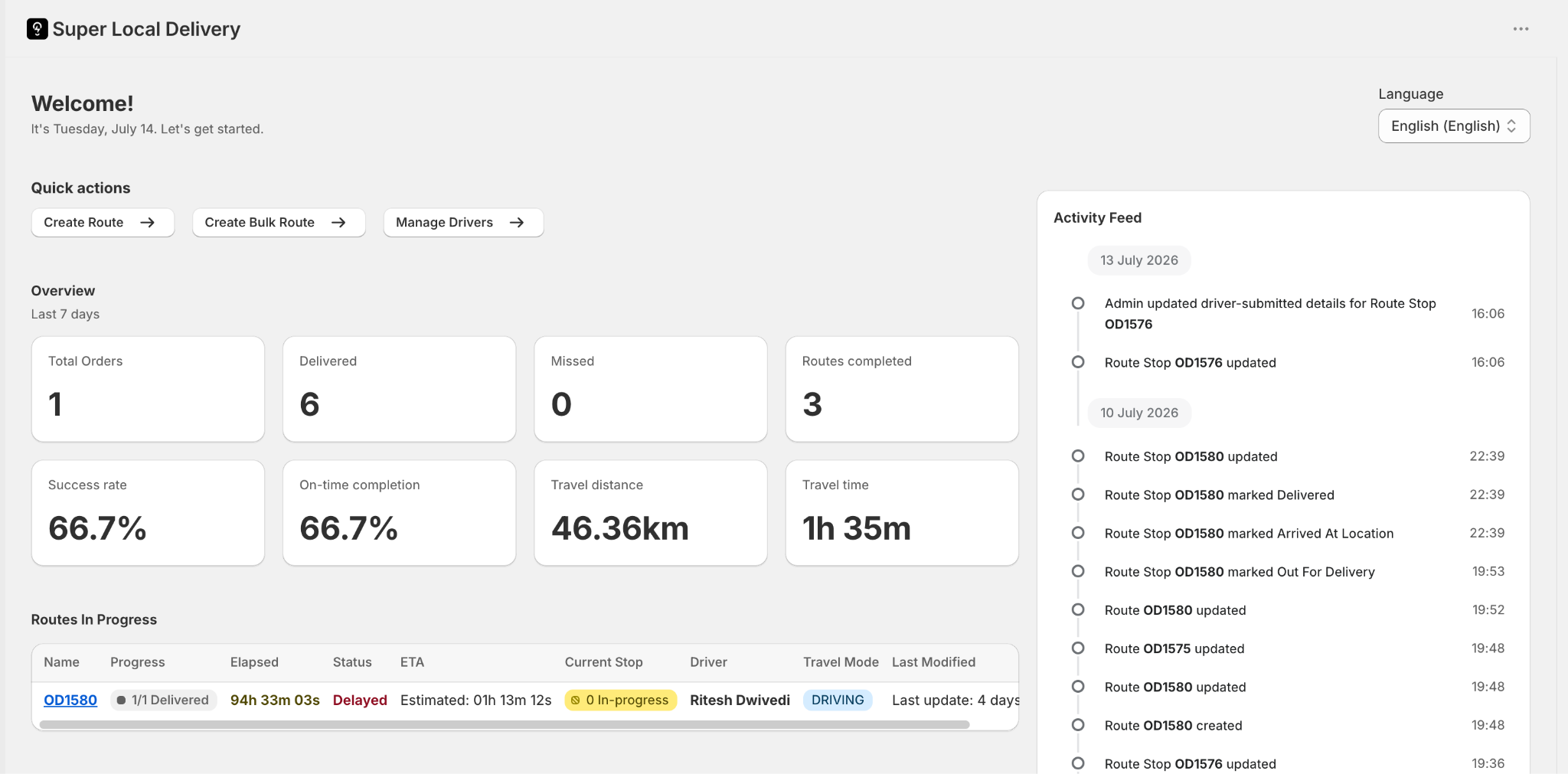
Step 1: Login
• Log in to the Super Local Delivery Dashboard.
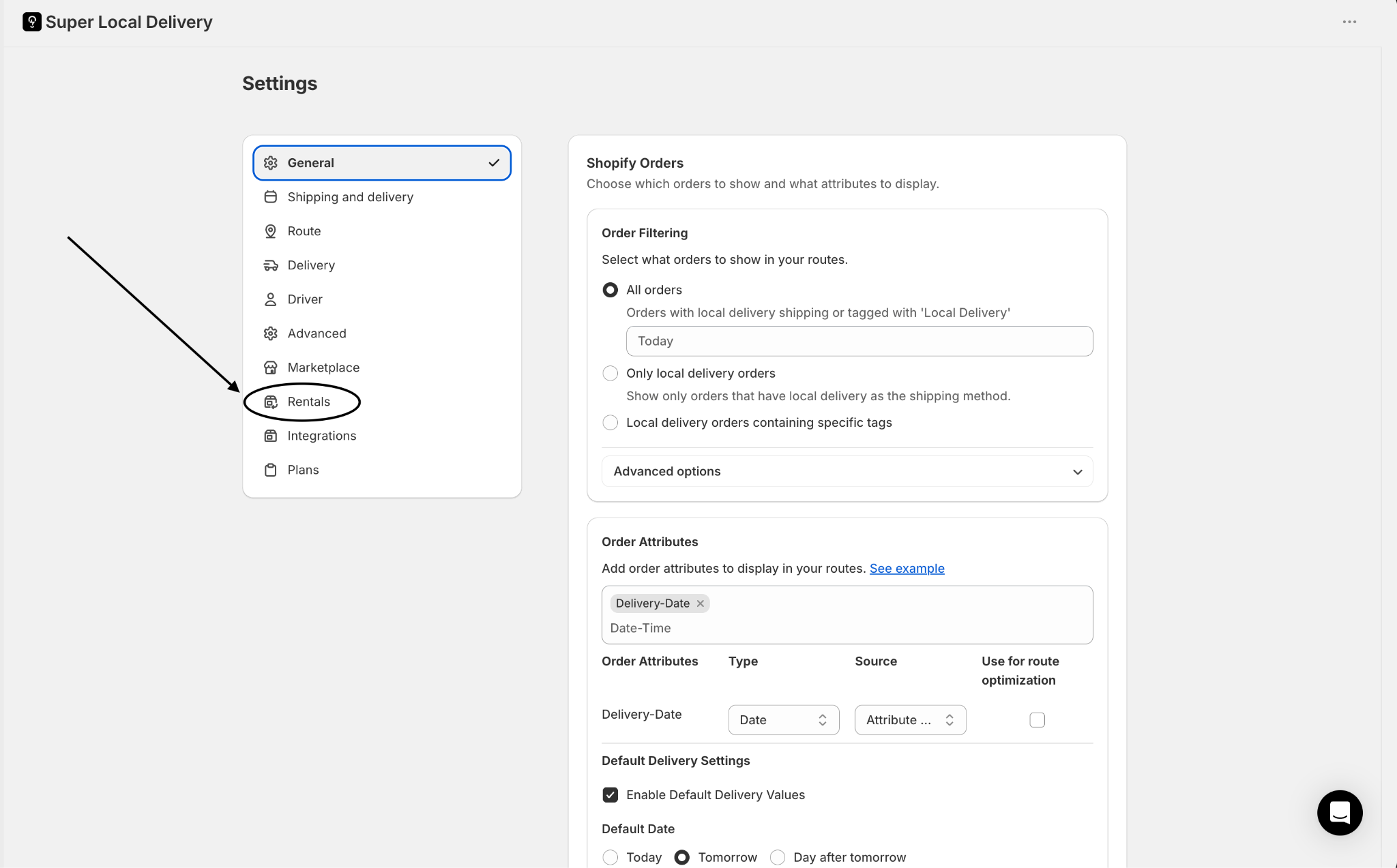
Step 2: Open Settings → Rentals
• From the left-hand navigation, open Settings.
• Select the Rentals tab.
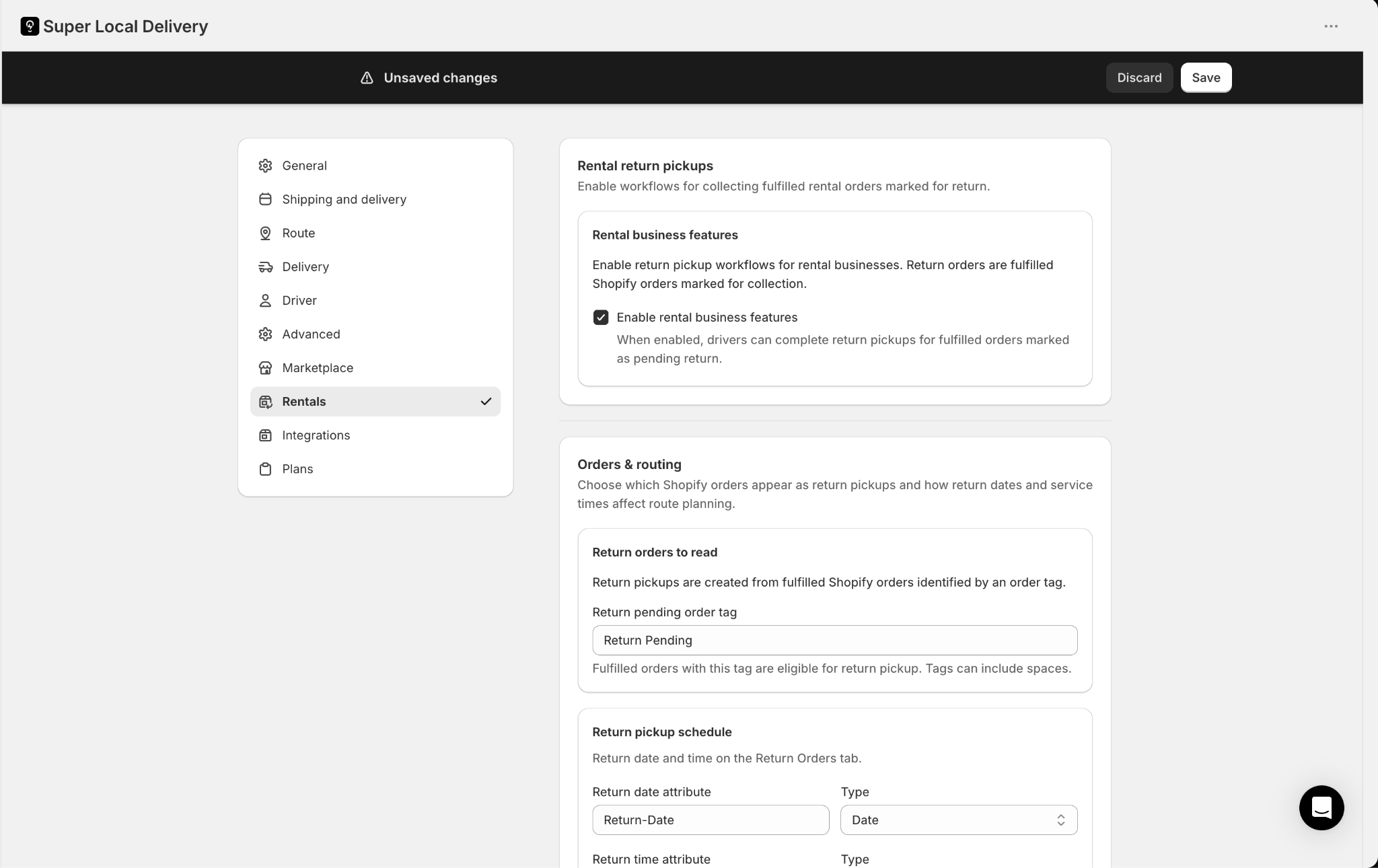
Step 3: Enable rental business features
• Under Rental return pickups, turn on Enable rental business features.
• Click Save.
Part 2 — Configure settings (detailed)
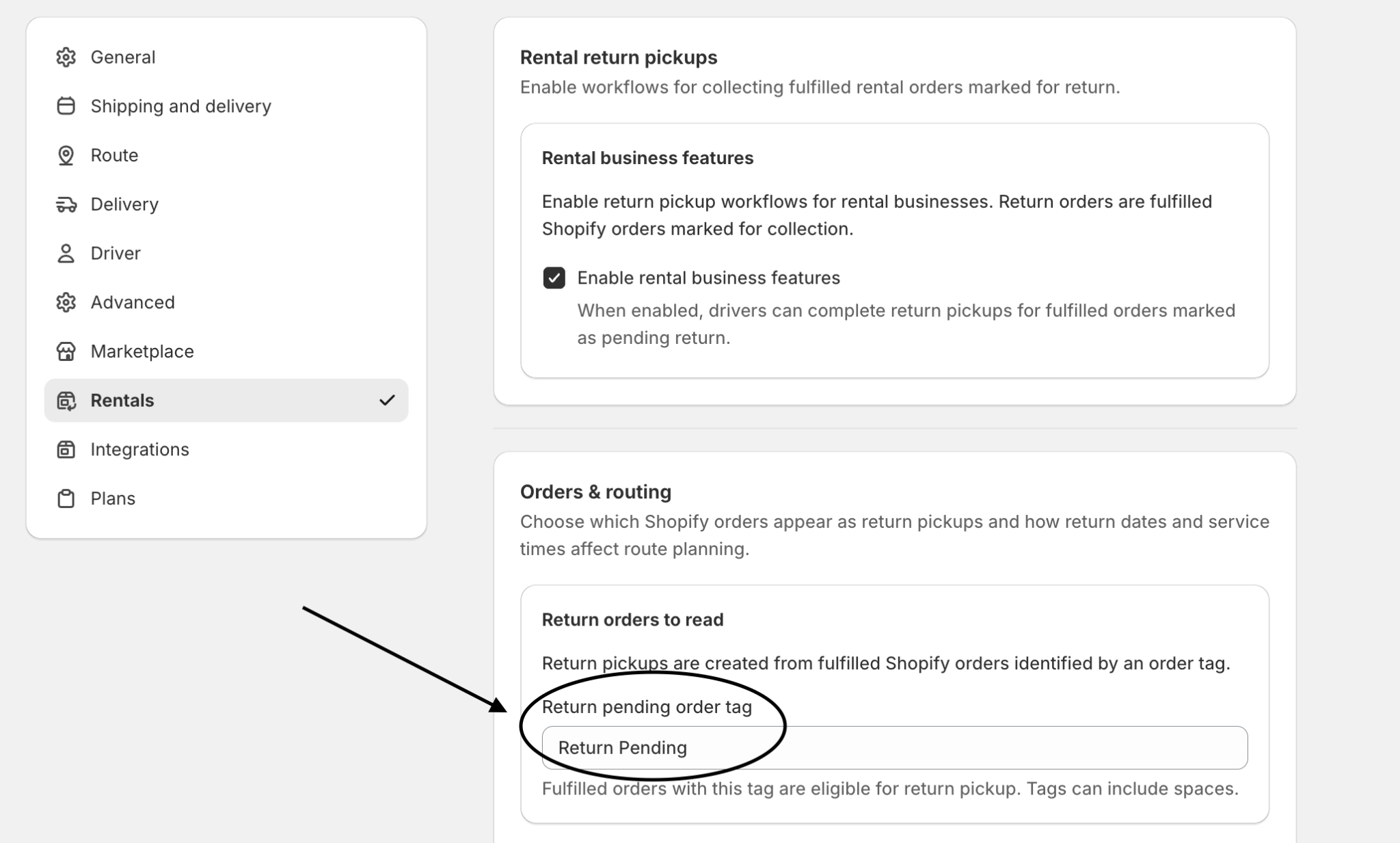
Step 4: Return pending order tag
• Under Return orders to read, set Return pending order tag.
• Default: Return Pending.
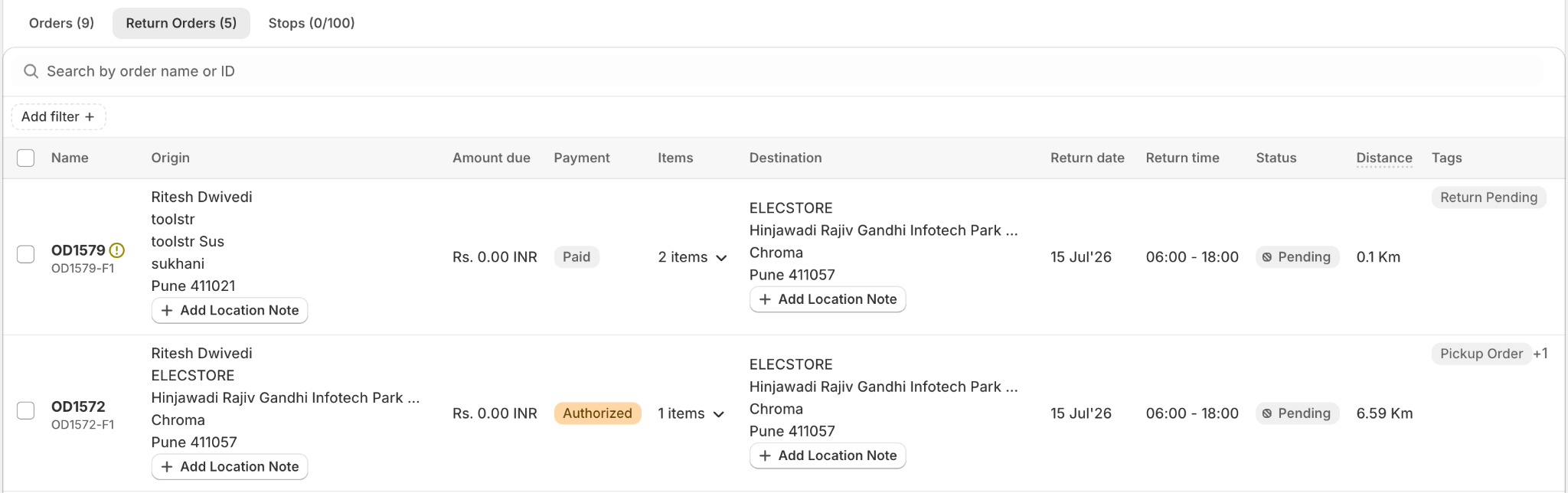
• Only fulfilled Shopify orders with this exact tag appear on the Return Tab.
• Tags may include spaces. Keep the same value in Flow / SuperCycle app.
Step 5: Return date and time attributes
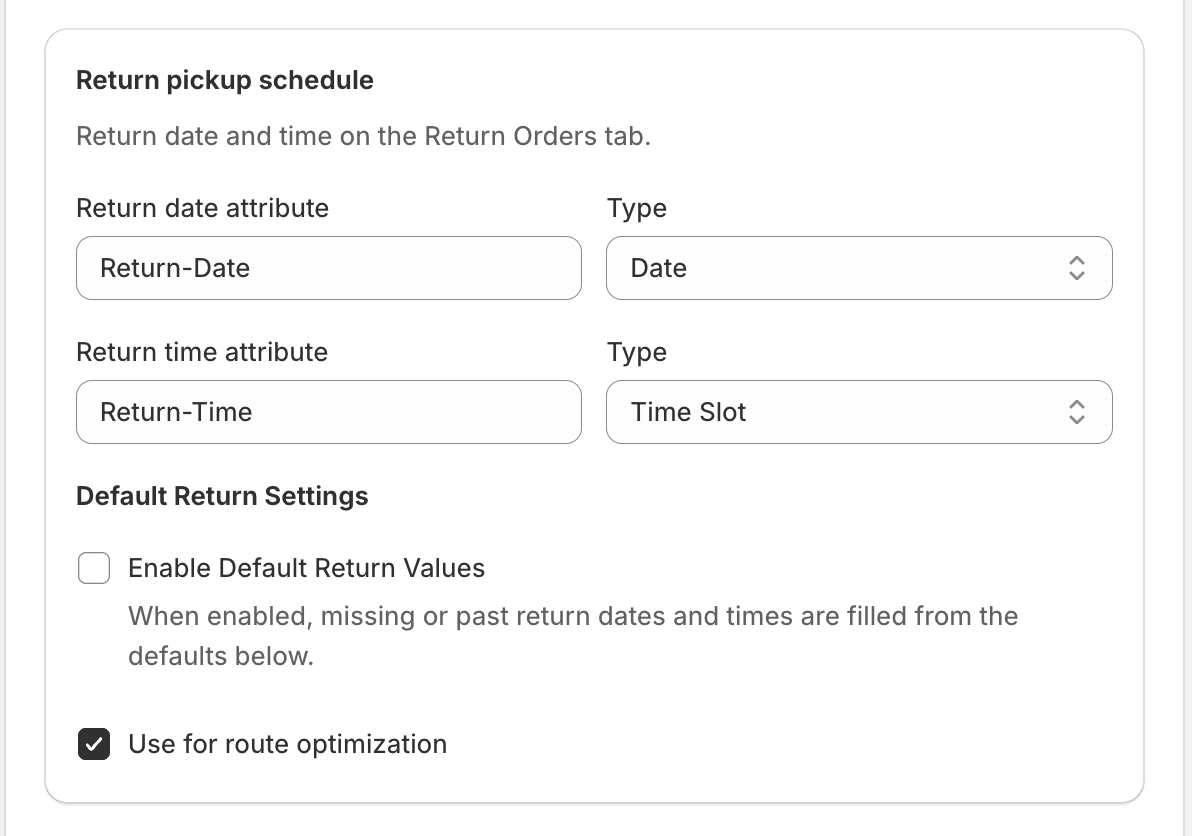
• Under Return pickup schedule, set attribute suffixes SLD reads from Shopify order note attributes.
• Defaults:
• Return date → Return-Date (type: date)
• Return time → Return-Time (type: time-slot)
• Attribute type options: string, number, date, time-slot.
How SLD looks up keys (example order #1001):
1 FO-prefixed: #1001-Return-Date / #1001-Return-Time (preferred)
2 Multi-FO name: #1001 (2)-Return-Date when needed
3 Plain suffix: Return-Date / Return-Time
Recommended example:
| Key | Example value |
| #1716-Return-Date | 2026-07-20 |
| #1716-Return-Time | 10:00 - 12:00 |
Step 6: Optional — default return values
• Enable Default return values if missing or past return dates/times should be filled automatically.
• Choose default date: Today / Tomorrow / Day after tomorrow.
• Set default time slot start and end.
• Keep Use for route optimization on so return windows influence optimized routes.
Step 7: Return service time
• Set default service minutes per return pickup stop.
• Optional advanced: dynamic minutes from variant metafield common.return_service_time (per item or per product).
Step 8: Driver app — proof, signature, notes
• Return order proof — Disabled / Optional / Required
• Return pickup signature — Disabled / Optional / Required
• Notes presets — e.g. Item damaged, Parts missing, Item missing
• Click Save and confirm settings after refresh.
Part 3 — Create a return pickup route
Step 9: Build the route in SLD
1 Click Create Route (or edit a route).
2 Select the fulfillment location.
3 Open the Return Orders tab.
4 Filter by return date if needed.
5 Select return pickups (you can mix deliveries + returns).
6 Get Direction / optimize, Save.
Order status summary
| Status | Meaning |
| Out For Return Pickup | Driver en route to collect |
| Return Picked Up | Item collected; heading back |
| Missed Return Pickup | Failed at customer (terminal) |
| Return Pickup Completed | Back at store (terminal success) |
Missed reasons: CUSTOMER_NOT_REACHABLE, CUSTOMER_CANCELLED, LOCATION_INCORRECT.
Part 6 — Shopify Flow
Mark order ready for return
1 Apps → Flow → Create workflow.
2 Trigger when rental is due (schedule, SuperCycle tag, or staff action).
3 Add order tags → Return Pending.
4 Optional: set note attributes Return-Date / Return-Time (or FO-prefixed).
5 Activate and test.
React to driver Stop Actions
SLD trigger: Stop Action.
| Action value | Typical automation |
| Out For Return Pickup | SMS/email “pickup on the way” |
| Return Picked Up | Notify warehouse / customer |
| Missed Return Pickup | Internal reschedule alert |
| Return Pickup Completed | Remove Return Pending; add Return Collected |
Filter with Stop Type = Return Pickup and/or Delivery Type = rental_return.
Quick reference — defaults
| Item | Default |
| Return pending tag | Return Pending |
| Return date suffix | Return-Date |
| Return time suffix | Return-Time |
| FO-prefixed example | #1001-Return-Date, #1001-Return-Time |
| Variant metafield (optional) | common.return_service_time |
| Proof / signature | disabled |
Using Supercycle?
Use these Shopify flow automation workflows to manage order tags, and date attributes to your Shopify orders.