
Create a QR Code with Multiple Discount Codes
Learn how to create a single QR code that applies multiple discount codes during checkout.
Updated
Preconditions
- Each discount code must be active in Shopify.
- Each discount must be allowed to combine with the other in Shopify discount settings.
- The
return_toparameter can be set to/checkoutor any page you like (e.g., a custom landing page).
Example Destination URL
https://yourstore.com/cart/update?discount=OFF5,SHIPFREE&return_to=/checkout
In this example:
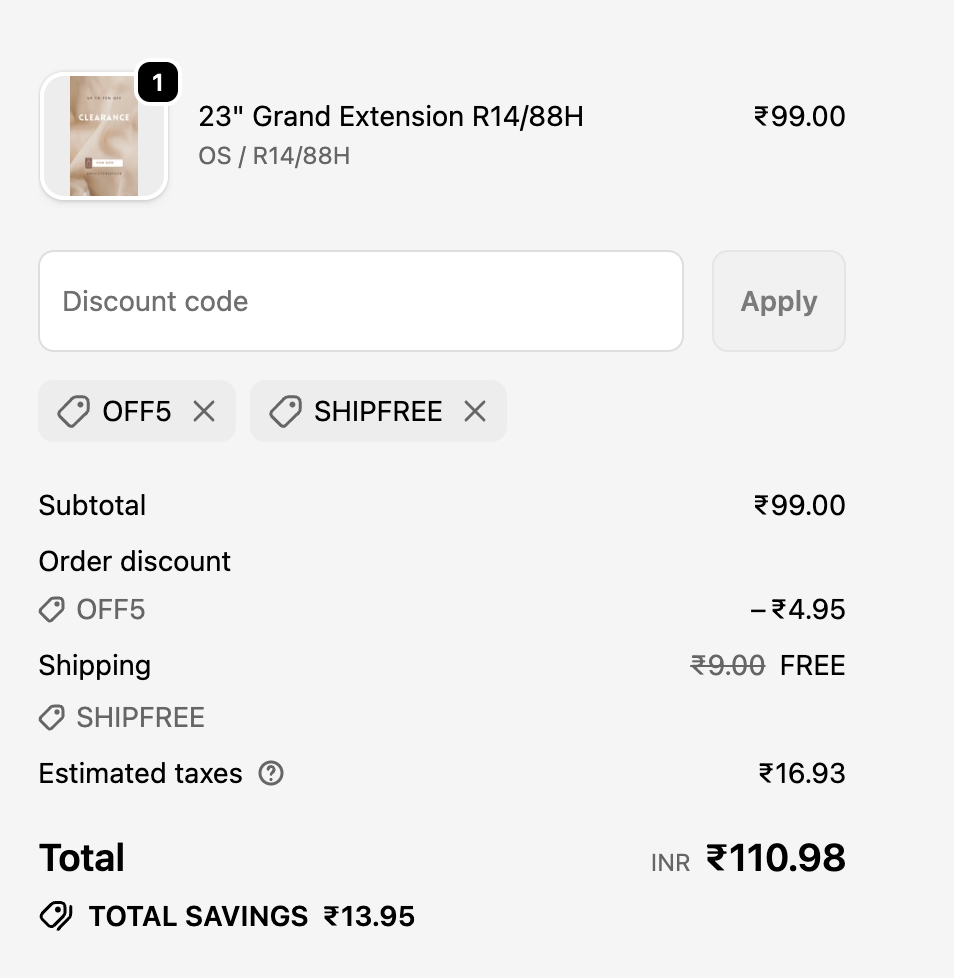
OFF5applies a 5% order discount.SHIPFREEapplies free shipping.return_to=/checkoutsends the customer straight to checkout after applying both discounts.
Steps to Create the QR Code
-
Log in to your Super QR Codes dashboard.
-
Click Create New QR Code.
-
Choose Custom URL as destination.
-
Paste your multi-discount destination URL, e.g.:
https://yourstore.com/cart/update?discount=OFF5,SHIPFREE&return_to=/checkout -
Customize the QR code design (colors, logo, shape).
-
Add an Announcement Banner Message to clearly explain the offer, e.g.:
Get 5% off + Free Shipping when you scan this code!
-
Generate and save the QR code.
Example Screenshots
Discount Code Setup in Shopify
Order discount code

Free shipping code

Checkout with Both Discounts Applied
Best Practices
- Always Test: Scan the QR code to confirm both discounts apply correctly.
- Communicate Clearly: Use the announcement bar to highlight the combined offer.
- Keep Codes Short: Use short, easy-to-remember discount codes.
- Monitor Usage: Track performance in Shopify’s discount reports.
By using this method, you can bundle multiple discounts into one QR code, making promotions more attractive and checkout faster for your customers.