
Using Shopify POS to scan QR Codes
A step-by-step guide to using QR codes in Shopify POS app
Updated
Step 1: Add the QR Code Scanner Tile to POS Home Page
- Open your Shopify POS app on your device.
- Tap Add Tile > App.
- From the available options, choose Super QR Codes.
- Add the "POS UI Extension" widget
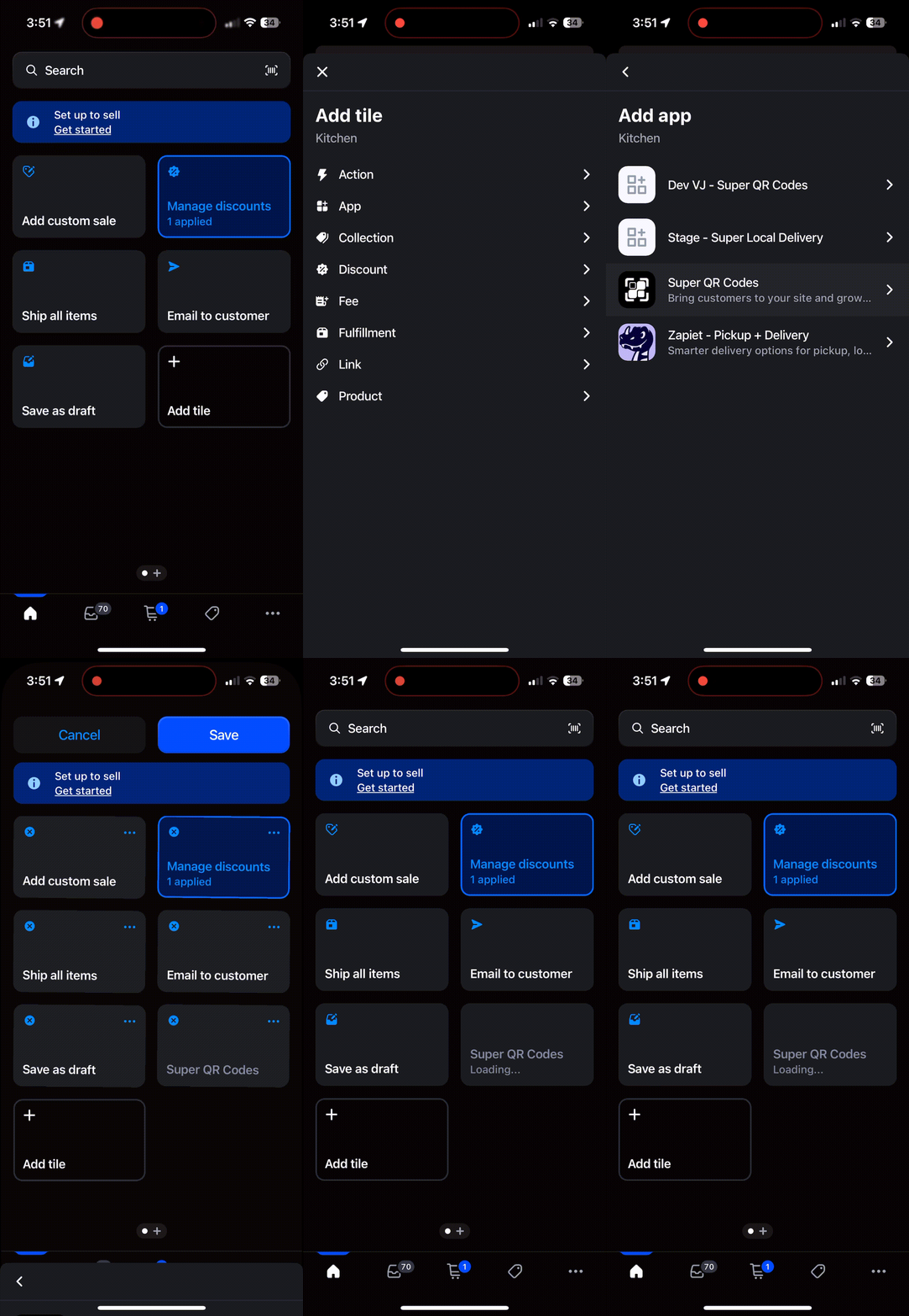
Step 2: Scan and use a product variant or discount QR Code in POS
-
From the POS home screen, tap the Super QR Codes tile.
-
Point your device’s camera to the QR code.
-
Once scanned:
- If it’s a Discount QR Code, the associated discount will automatically be applied to the cart.
- If the QR code links to a Product variant, the product variant will be added to the cart.
-
Verify the action by checking the cart.
Only Product Variant and Discount code QR codes generated by the Super QR Codes app is supported. Both Dynamic and Bulk QR codes types are supported.
Example Use Cases
- In-Store Promotions: Offer QR codes on posters or flyers in-store to give customers instant discounts at checkout.
- Loyalty Rewards: Customers scan their membership QR code for personalized discounts.
- Product Bundles: Scan QR codes to quickly add bundles or special collections into the cart.
Best Practices
- Test Before Launch: Always test scanning with a few discount QR codes before rolling out.
- Keep QR Codes Handy: Provide staff with QR code cards or printed materials to ensure smooth operation.
- Use Clear Labels: Let customers know that QR codes can be scanned directly at checkout.
By adding the scanner tile and using QR Codes in Shopify POS, you can deliver faster checkouts, smoother in-store promotions, and better customer experiences.